
Loading The Site On Your Smartphone
For Your iOS Devices:
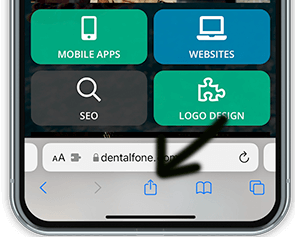
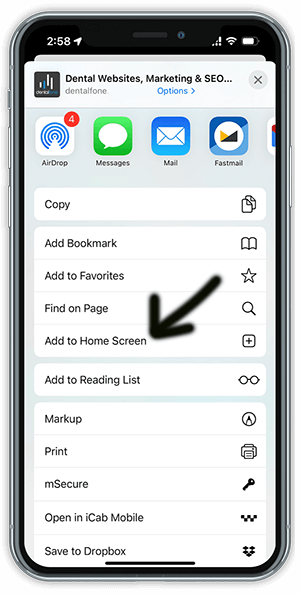
To add an icon to the home screen on your iPhone, iPod Touch or iPad when you’re looking at the home page of the app in Safari select the button shown below and scroll to and select “Add to Home Screen.” You must be using the Safari browser to view the app in order to see this option.
For Your Android Devices:
On Android it’s slightly more involved, depending on the browser being used:
- For recent Samsung devices using the built in browser, simply click the menu button (bottom left on the Galaxy S4) and select “Add Shortcut” to put the icon on your home screen. The icon should be available on your home screen for easy access. Please note, this may not work on all versions of Android.
- If you have loaded the most recent version of Google Chrome (please update if you have not already), simply select the menu key while on the home page of the app and select “Add to Home Screen.”
- For other Browsers, start by bookmarking the page you want to add to the home screen.
- For Chrome you select the menu key and then press the small “star” in the upper right hand corner, and save the bookmark in the folder of your choice.
- Select the menu again and choose bookmarks. Locate the bookmark to save to the home screen and press and hold it until the pop up menu displays.
- Select “Add to Home Screen” to add the icon to your phone’s home screen for easy access.
- The process may vary slightly from device to device or browser to browser, but should work similarly to the above in most cases.
- Older Android devices may show a generic star icon for the app instead of the customized button.
For Your Windows 8 and later Mobile Devices:
- Open the application in your browser using a QR code scanner.
- In the bottom right corner click on the 3 dots and select “pin to start” to add to your home screen.
QR Scanners
Most new smartphones can scan QR Codes using the built in Camera App. Just go to take a picture but don’t click the camera button, a pop-up should display when viewing the QR code through your phone that will allow you to click the link provided by the code. If your phone doesn’t support QR codes in the camera app, you can download a QR Code Scanner app from the appropriate app store for your phone.

